
TH-BLE: Difference between revisions
(Created page with " Русская версия Versión en español = '''Определение и назначение датчика''' = мини|Текущий дизайн TH-BLE Измеритель влажности, температуры '''TH-BLE''' (далее – измеритель, изделие, датчик, TH-BLE) предназначен для измерения температуры,...") |
No edit summary |
||
| (29 intermediate revisions by one other user not shown) | |||
| Line 2: | Line 2: | ||
[[es:TH-BLE| Versión en español]] | [[es:TH-BLE| Versión en español]] | ||
= ''' | = '''<big>Definition and purpose of the sensor</big>''' = | ||
[[ | [[File:TH-BLE current design 1.png|thumb|'''<big>Current design of TH-BLE</big>''']] | ||
The TH-BLE humidity and temperature meter (hereinafter referred to as the meter, product, sensor, TH-BLE) is designed to measure the temperature and humidity of the external environment. | |||
The TH-BLE sensor reads air temperature and humidity values in the immediate vicinity of the measuring probe, estimates the remaining capacity of batteries; transmits the received measurement values via wireless communication channel to a tracker with BLE interface, a mobile device equipped with BLE interface or a BLE-BASE signal receiver. Depending on the version TH-BLE can also additionally measure illumination, determine the presence of magnetic field by hall sensor and monitor the state of two binary inputs (for limit switches). | |||
More detailed technical characteristics are presented in the [https://www.fmeter.ru/download/_ftp/eng/wireless-temperature-and-humidity-sensor/Datasheet%20Escort%20TH-BLE.pdf?v=101024175211#page=15 technical data sheet of the device]. | |||
= ''' | = '''<big>Basic terms and concepts</big>''' = | ||
''' | '''Serial number''' - code consisting of letters and numbers assigned to a device (sensor). | ||
''' | '''Sensor's name''' - sensor's designation among BLE devices consisting from two letter from the sensor's model name and six last digits from the serial number; E.g. TH_100100; | ||
'''MAC- | '''MAC-address''' - unique identifier assigned to every active device. Used to recognize devices in the network. | ||
''' | '''Data packet''' - is a set of parameters transmitted by a device equipped with a Bluetooth transmitter, the structure of which is determined by the data transfer protocol. | ||
''' | '''Data transfer protocol''' - is a set of specific rules or conventions of a logical level interface that defines the exchange of data between various programs or devices. In the case of the TH-BLE sensor, the '''Escort BLE''' protocol is used to transmit data packets. | ||
''' | '''Advertising mode''' - is a data transfer mode in which the device “distributes” data packets at a certain frequency, regardless of the presence of a device receiving the data. | ||
''' | '''Connection mode''' - is a data transfer mode in which the transmitter waits for a connection to the receiving device in order to begin transmitting data packets. | ||
'''[[База BLE-RS485]]''' - | '''[[База BLE-RS485|Base BLE-RS485]]''' - is a device that relays data transfer and converts it from a Bluetooth packet into a data packet transmitted via the RS-485 interface in accordance with the LLS protocol. | ||
'''[[BA-BLE| | '''[[BA-BLE|Base BA-BLE]]''' - is a device that relays data transfer and converts it from a Bluetooth packet into a data packet transmitted via RS-485 and RS-232 interfaces in accordance with the LLS and Modbus protocol. | ||
== '''<big> | == '''<big>TH-BLE sensor's design</big>''' == | ||
=== '''<big> | === '''<big>TH-BLE design with first generation external probe</big>''' === | ||
[[ | [[File:TH-BLE first generation design.png|frameless|679x679px]] | ||
=== '''<big> | === '''<big>TH-BLE design with second generation external probe</big>''' === | ||
[[ | [[File:TH-BLE current generation design.png|frameless|622x622px]] | ||
= ''' | = '''<big>Classification of TH-BLE models</big>''' = | ||
Today there are 3 models of TH-BLE presented in Table 1. | |||
{| class="wikitable" | |||
|+<big>Table 1</big> | |||
!<big>Sensor image</big> | |||
!<big>Sensor name</big> | |||
!<big>Sensor characteristics</big> | |||
|- | |||
|[[File:TH-BLE Light 1.png|frameless|300x300px]] | |||
|'''TH-BLE Light''' | |||
|Temperature and humidity sensor | |||
|- | |||
|[[File:TH-BLE current design 1.png|frameless]] | |||
|'''TH-BLE''' | |||
|Temperature, humidity and magnetic field sensor (Hall sensor) | |||
|- | |||
|[[File:TH-BLE 2DIN 1.png|frameless]] | |||
|'''TH-BLE 2DIN''' | |||
|Sensor for temperature, humidity, magnetic field (Hall indicator), brightness and activity of digital inputs | |||
|} | |||
= '''<big>Connecting sensor to a smartphone</big>''' = | |||
To configure the TH-BLE sensor, calibrate it and calibrate the tank, you should use the Escort Configurator application, available on [https://apps.apple.com/ru/app/escort-sensor-configurator/id1483425085 iOS] and [https://play.google.com/store/apps/details?id=ru.fmeter.config Android] devices (hereinafter referred to as the “'''application'''” or "'''app'''"). | |||
== '''<big>Geolocation</big>''' == | |||
Launch the app and activate '''Bluetooth''' and geolocation on your smartphone also check if application have access to '''geolocation'''. | |||
[[File:Screenshot_20240221-094919_One_UI_Home.png|664x664px]] [[File:Screenshot_20240221-095105_Permission_controller.png|667x667px]] | |||
== '''<big>Connecting sensor</big>''' == | |||
[[File:TH-BLE connection gif.gif|frameless]] | |||
Press the '''Sensor Settings''' button. Next, select '''TH-BLE'''. | |||
[[File:TH-BLE sensor settings.jpg|frameless]] [[File:TH-BLE select connection type.jpg|frameless]] | |||
Find the required sensor by typing the last 6 digits of its serial number. You can find the serial number on the sensor head. | |||
You can also simply select the required sensor from the list and click the Connect button. On an Android device, you can click on the sensors name, and a package of data received in advertising mode will be displayed. | |||
[[File:TH-BLE sensor search.jpg|frameless]] [[File:TH-BLE advertising data.jpg|frameless]] | |||
== '''<big>Setting a password</big>''' == | |||
It is strongly recommend that you set a password on the sensor in order to restrict access to its settings. When you connect for the first time, the application will ask you to set a password automatically. | |||
You can set, change and delete a password in the '''Settings'''. | |||
[[File:TH-BLE settings page selection.jpg|frameless]] | |||
Then, in the field that appears named "Password for changing settings", enter the password that you want be used later and click '''Enter'''. | |||
[[File:TH-BLE password input section.jpg|frameless]] | |||
<blockquote>'''<big><u>PLEASE NOTE THAT THE PASSWORD RESET PROCEDURE CAN BE VERY TIME-CONSUMING. WE RECOMMEND THAT YOU TAKE A RESPONSIBLE APPROACH IN SETTING YOUR PASSWORD AND SAVING IT.</u></big>'''</blockquote>'''<big>Also note that the password cannot start with 0.</big>''' | |||
To delete a previously set password, you must enter it in the Password field, and then press the '''Enter''' and then the '''Delete''' buttons. | |||
'''Attention!''' By default, there is no password set on the sensor! If you connected the sensor and a password was already set on it, contact technical support. | |||
''' | == '''<big>Main sensor parameters</big>''' == | ||
To see the main parameters of the sensor go to the '''Data''' tab. There you can see the following parameters: | |||
# '''RSSI''' - Received signal strength indicator, which indicates how well your smartphone receives sent data. This parameter is not transmitted by the sensor, but is calculated by the receiving device | |||
# '''Vbat''' or sensor battery charge (3.5V or higher indicates the battery is fully charged; 3.2V or lower indicates the battery is low and should be replaced) | |||
# Sensor serial number | |||
# Firmware version ('''FW''') installed in the sensor | |||
# '''Temperature''' measured by sensor (°C) | |||
# '''Humidity''' measured by the sensor (%) | |||
# '''Illuminance''' measured by the sensor (Lux) | |||
# '''Hall sensor''' activity | |||
# '''Shorting''' of the first pair of digital inputs (red and black) | |||
# '''Shorting''' of the first pair of digital inputs (yellow and green) | |||
# The format of the transmitted data. Changeable in the sensor settings | |||
# The sensor's '''MAC address''' is used to connect the sensor to compatible external devices | |||
[[File:TH-BLE data page.jpg|frameless]] | |||
'''The battery voltage drops to 3.2V for 10-15 seconds''' - this is normal (especially if this happens after rebooting the sensor by removing the sensor battery and then installing the battery back). This is due to the fact that all processes in the sensor (measuring level, temperature and battery voltage, as well as sending a data packet) are launched simultaneously, thus energy consumption increases, which leads to a temporary decrease in battery voltage. | |||
''' | == '''Operation mode''' == | ||
All TH-BLE sensors have the option to change the data transmission from the digital inputs. Changing this setting changes the transmission format. On trackers without TH-BLE 2DiN package support, this will cause a transmission error. | |||
[[File:TH-BLE digital inputs enabled.jpg|frameless]] [[File:TH-BLE digital inputs seletion.jpg|frameless]] [[File:TH-BLE digital inputs disabled.jpg|frameless]] | |||
= '''<big>Black box</big>''' = | |||
In order for the black box entries to have an up-to-date time reference, you need to '''synchronize''' the black box time with your smartphone time. | |||
The app automatically requests time synchronization if it sees that the black box time is not synchronized. | |||
You can also synchronize the time manually by going to the '''Settings''' '''menu(1''') and clicking '''Synchronize time(2'''). | |||
[[File:TH-BLE step settings selection.jpg|frameless]] [[File:TH-BLE synch time option.jpg|frameless]] | |||
To retrieve data from the Black Box, from the main page, select Black Box ('''1'''). After that, you can select the period in days ('''2''') and/or hours ('''3''') and download data for the selected period ('''4''') or for the whole period (maximum 30 days) ('''5'''). You can also clear the black box by deleting all records. | |||
[[File:TH-BLE black box page selection.jpg|frameless]] [[File:TH-BLE data download.jpg|frameless]] | |||
Then, click on the '''Save data button''' ('''1'''). A graph will appear on the screen. On the graph screen, you can also save the upload file to your phone’s memory ('''2''') or send it via instant messengers or email ('''3'''). | |||
[[File:Downloading Black box.png|frameless]] [[File:TH-BLE sharing black box data.jpg|frameless]] | |||
[ | Also, graphs from the black box can be viewed on a PC using a calibration table through the [https://docs.google.com/document/d/1CdFPhy2SVu3DxVLy4tY0j1YlaVjdB3ykyLR21iuAwYs/edit?usp=drive_link Escort Charter] | ||
If you have previously saved data from the black box, you can '''display''' it by clicking on the '''graph icon''' in the upper right corner ('''1''') | |||
[[File:Previous graph.png|frameless]] | |||
= '''<big>Sealing and installation</big>''' = | |||
= ''' | == '''<big>Connection dimensions</big>''' == | ||
== '''<big> | === '''<big>Connection dimensions of the TH-BLE of the former design</big>''' === | ||
[[File:Connection dimensions DU-BLE former design .png]] | |||
[[File:Dimensions of former design DU-BLE.png]] | |||
[[ | |||
=== '''<big> | === '''<big>Connection dimensions of the TH-BLE of the current design</big>''' === | ||
[[ | [[File:Connection dimensions DU-BLE current design .png]] | ||
[[File:Dimensions of current design DU-BLE.png]] | |||
== <big>'''Sensor sealing'''</big> == | |||
=== <big>'''Sealing TH-BLE of the former design'''</big> === | |||
To seal the sensor and prevent unauthorized access to it, install the protective cover and pass the seal through the special holes in the cover. Tighten the seal against its end into the special hole in the seal. Cut off the excess wire of the seal. | |||
[[File:Sealing former design DU-BLE.png]] | |||
[[ | === <big>'''Sealing TH-BLE of the current design'''</big> === | ||
You will need the sensor protective cover and the seal provided in the kit<gallery widths="300" heights="300"> | |||
File:New_design_cap.png|'''<big>Protective cover TH-BLE</big>''' | |||
File:New_design_seal.png|'''<big>TH-BLE seal</big>''' | |||
</gallery>The cover is attached to the sensor head | |||
[[File:TD-BLE_with_cap.png|none|thumb|455x455px|'''<big>TH-BLE with cap</big>''']] | |||
== | Then the seal itself is fixed in a special hole (it must be inserted to the end, with the '''closed end facing outward''')<gallery widths="350" heights="350"> | ||
File:Installing_TD-BLE_seal.png|'''<big>Installing TH-BLE seal</big>''' | |||
File:Installed_TD-BLE_seal.png|'''<big>Installed TH-BLE seal</big>''' | |||
</gallery>To remove the seal, screw in the special key from the kit (you can also use any self-tapping screw of suitable size) and pull it towards yourself. | |||
[[File:Removing_seal.png|none|thumb|493x493px|'''<big>Removing seal</big>''']] | |||
[[File:Seal_after_removal.png|none|thumb|'''<big>Seal after removal</big>''']] | |||
This makes it impossible to remove the seal without damaging it. This provides additional protection against unauthorized access. | |||
=== '''<big>Alternative sealing for TH-BLE of the current design</big>''' === | |||
Also included with the current TH-BLE is an alternative seal if a numbered seal is required. | |||
* The wire must be threaded through the hole in the sensor cover | |||
[[File:Alternative_sealing_step_1.png|frameless|433x433px]] | |||
* Thread both ends of the cable through the hole in the sensor head | |||
[[File:Alternative_sealing_step_2.png|frameless|519x519px]] | |||
* Pass both ends through the seal, tighten the cable and install the seal by pressing the protruding part of the seal | |||
[[File:Alternative_sealing_step_3.png|frameless|543x543px]] | |||
== <big>'''Mounting and transmitter direction'''</big> == | |||
The most common mounting method is self-tapping screws with a sealing washer. It is also possible to install on threaded crimp nuts, welded bushings and other structural elements. The sensor can be mounted on pre-prepared places using screws and bolts with strength class not less than 4.8. It is necessary to ensure tightness of the connection between the sensor body and the tank. For additional protection it is allowed to use automotive oil and gasoline resistant sealant. | |||
For plastic tanks rivets and bolts can be used. | |||
[[ | [[File:Antenna_direction.png|frameless|768x768px]]<blockquote><big>'''IMPORTANT! If it is necessary for the magnetic field sensor (or Hall sensor) of the TH-BLE to work properly, the magnet (e.g. from the installation kit) must physically touch the part of the device emphasized in the picture below.'''</big></blockquote> | ||
[[File:Hall sensor TH-BLE.png|none|thumb|575x575px|'''<big>Hall sensor position in TH-BLE</big>''']] | |||
== <big>''' | == <big>'''How hard to screw in self-tapping screws'''</big> == | ||
[[ | [[File:How to hard to tighten the screws.png|frameless|512x512px]] | ||
= ''' | = '''Temperature calculation formula for the TH-BLE if transmitted as level reading. Configuration of a new sensor on the Wialon platform''' = | ||
Formula for recalculating the TH-BLE sensor temperature when transferred to the level field: | |||
''<big>Y=a*X+b</big>'', | ''<big>Y=a*X+b</big>'', | ||
where''<big>Y</big>''- is the temperature, measured by TH-BLE, ''<big>X</big>''- is the level, transmitted to the “Level” field by LLS, ''<big>а</big>'' and ''<big>b</big>'' – are chosen by the table 2 | |||
{| class="wikitable" | {| class="wikitable" | ||
|+ | |+Table 2 | ||
! | !Range of the input parameter (X) | ||
!a | !a | ||
!b | !b | ||
| Line 205: | Line 229: | ||
|} | |} | ||
== '''<big> | == '''<big>Example table for connection via BA-BLE</big>''' == | ||
[[ | [[File:TH-BLE table for BA-BLE.png|none|thumb|750x750px|'''<big>TH-BLE table for BA-BLE</big>''']] | ||
== '''<big> | == '''<big>Example table for direct connection</big>''' == | ||
[[ | [[File:TH-BLE direct connection table.png|none|thumb|740x740px|'''<big>TH-BLE table for direct connection</big>''']] | ||
= ''' | = '''Connection diagram''' = | ||
== | == Wiring diagram for digital inputs == | ||
[[ | [[File:TH-BLE connection of digital inputs.png|frameless]] | ||
= ''' | = '''<big>Firmware update (FW)</big>''' = | ||
[[ | [[File:TH-BLE-FW gif.gif|frameless]] | ||
To update the firmware on the TH-BLE: | |||
* | * Download the current firmware version as a file to the phone memory. | ||
* | * Connect to the sensor | ||
* | * Go to “'''Settings'''” | ||
* | * Go to FW update | ||
* | * Select the firmware file ('''1''') from the phone memory (The firmware file is the .zip archive itself, no need to unzip it) and start the flashing process ('''2'''). '''These actions should be performed within 30 seconds after entering update mode!''' | ||
* | * The flashing process should start. Do not close or minimize the application during the flashing process! | ||
* | * When the updating is completed, a window will pop up indicating that the update was successful | ||
Up-to-date firmware can be found in the [https://www.fmeter.ru/en/download/#THble download section]. | |||
The firmware file is the .zip archive itself, no need to unzip. | |||
= ''' | = '''Useful links''' = | ||
* '''<big>[https://www.fmeter.ru/download/_ftp/wireless-temperature-and-humidity-sensor/% | * '''<big>[https://www.fmeter.ru/download/_ftp/eng/wireless-temperature-and-humidity-sensor/Datasheet%20Escort%20TH-BLE.pdf?v=101024175211#page=15 Technical data sheet of the device]</big>''' | ||
* '''<big>[https://www.fmeter.ru/produktsiya/wireless-temperature-and-humidity-sensor/escort-th-ble/#active | * '''<big>[https://www.fmeter.ru/en/produktsiya/wireless-temperature-and-humidity-sensor/escort-th-ble/#active Product page]</big>''' | ||
* '''<big>[https://www.fmeter.ru/download/#THble | * '''<big>[https://www.fmeter.ru/en/download/#THble Download materials]</big>''' | ||
* '''<big>[[ | * '''<big>[[Table of compatibility of BLE sensors with trackers and other devices]]</big>''' | ||
Latest revision as of 17:25, 21 April 2025
Definition and purpose of the sensor

The TH-BLE humidity and temperature meter (hereinafter referred to as the meter, product, sensor, TH-BLE) is designed to measure the temperature and humidity of the external environment.
The TH-BLE sensor reads air temperature and humidity values in the immediate vicinity of the measuring probe, estimates the remaining capacity of batteries; transmits the received measurement values via wireless communication channel to a tracker with BLE interface, a mobile device equipped with BLE interface or a BLE-BASE signal receiver. Depending on the version TH-BLE can also additionally measure illumination, determine the presence of magnetic field by hall sensor and monitor the state of two binary inputs (for limit switches).
More detailed technical characteristics are presented in the technical data sheet of the device.
Basic terms and concepts
Serial number - code consisting of letters and numbers assigned to a device (sensor).
Sensor's name - sensor's designation among BLE devices consisting from two letter from the sensor's model name and six last digits from the serial number; E.g. TH_100100;
MAC-address - unique identifier assigned to every active device. Used to recognize devices in the network.
Data packet - is a set of parameters transmitted by a device equipped with a Bluetooth transmitter, the structure of which is determined by the data transfer protocol.
Data transfer protocol - is a set of specific rules or conventions of a logical level interface that defines the exchange of data between various programs or devices. In the case of the TH-BLE sensor, the Escort BLE protocol is used to transmit data packets.
Advertising mode - is a data transfer mode in which the device “distributes” data packets at a certain frequency, regardless of the presence of a device receiving the data.
Connection mode - is a data transfer mode in which the transmitter waits for a connection to the receiving device in order to begin transmitting data packets.
Base BLE-RS485 - is a device that relays data transfer and converts it from a Bluetooth packet into a data packet transmitted via the RS-485 interface in accordance with the LLS protocol.
Base BA-BLE - is a device that relays data transfer and converts it from a Bluetooth packet into a data packet transmitted via RS-485 and RS-232 interfaces in accordance with the LLS and Modbus protocol.
TH-BLE sensor's design
TH-BLE design with first generation external probe

TH-BLE design with second generation external probe

Classification of TH-BLE models
Today there are 3 models of TH-BLE presented in Table 1.
| Sensor image | Sensor name | Sensor characteristics |
|---|---|---|

|
TH-BLE Light | Temperature and humidity sensor |
|
|
TH-BLE | Temperature, humidity and magnetic field sensor (Hall sensor) |

|
TH-BLE 2DIN | Sensor for temperature, humidity, magnetic field (Hall indicator), brightness and activity of digital inputs |
Connecting sensor to a smartphone
To configure the TH-BLE sensor, calibrate it and calibrate the tank, you should use the Escort Configurator application, available on iOS and Android devices (hereinafter referred to as the “application” or "app").
Geolocation
Launch the app and activate Bluetooth and geolocation on your smartphone also check if application have access to geolocation.


Connecting sensor

Press the Sensor Settings button. Next, select TH-BLE.


Find the required sensor by typing the last 6 digits of its serial number. You can find the serial number on the sensor head.
You can also simply select the required sensor from the list and click the Connect button. On an Android device, you can click on the sensors name, and a package of data received in advertising mode will be displayed.


Setting a password
It is strongly recommend that you set a password on the sensor in order to restrict access to its settings. When you connect for the first time, the application will ask you to set a password automatically.
You can set, change and delete a password in the Settings.

Then, in the field that appears named "Password for changing settings", enter the password that you want be used later and click Enter.

PLEASE NOTE THAT THE PASSWORD RESET PROCEDURE CAN BE VERY TIME-CONSUMING. WE RECOMMEND THAT YOU TAKE A RESPONSIBLE APPROACH IN SETTING YOUR PASSWORD AND SAVING IT.
Also note that the password cannot start with 0.
To delete a previously set password, you must enter it in the Password field, and then press the Enter and then the Delete buttons.
Attention! By default, there is no password set on the sensor! If you connected the sensor and a password was already set on it, contact technical support.
Main sensor parameters
To see the main parameters of the sensor go to the Data tab. There you can see the following parameters:
- RSSI - Received signal strength indicator, which indicates how well your smartphone receives sent data. This parameter is not transmitted by the sensor, but is calculated by the receiving device
- Vbat or sensor battery charge (3.5V or higher indicates the battery is fully charged; 3.2V or lower indicates the battery is low and should be replaced)
- Sensor serial number
- Firmware version (FW) installed in the sensor
- Temperature measured by sensor (°C)
- Humidity measured by the sensor (%)
- Illuminance measured by the sensor (Lux)
- Hall sensor activity
- Shorting of the first pair of digital inputs (red and black)
- Shorting of the first pair of digital inputs (yellow and green)
- The format of the transmitted data. Changeable in the sensor settings
- The sensor's MAC address is used to connect the sensor to compatible external devices

The battery voltage drops to 3.2V for 10-15 seconds - this is normal (especially if this happens after rebooting the sensor by removing the sensor battery and then installing the battery back). This is due to the fact that all processes in the sensor (measuring level, temperature and battery voltage, as well as sending a data packet) are launched simultaneously, thus energy consumption increases, which leads to a temporary decrease in battery voltage.
Operation mode
All TH-BLE sensors have the option to change the data transmission from the digital inputs. Changing this setting changes the transmission format. On trackers without TH-BLE 2DiN package support, this will cause a transmission error.


Black box
In order for the black box entries to have an up-to-date time reference, you need to synchronize the black box time with your smartphone time.
The app automatically requests time synchronization if it sees that the black box time is not synchronized.
You can also synchronize the time manually by going to the Settings menu(1) and clicking Synchronize time(2).


To retrieve data from the Black Box, from the main page, select Black Box (1). After that, you can select the period in days (2) and/or hours (3) and download data for the selected period (4) or for the whole period (maximum 30 days) (5). You can also clear the black box by deleting all records.


Then, click on the Save data button (1). A graph will appear on the screen. On the graph screen, you can also save the upload file to your phone’s memory (2) or send it via instant messengers or email (3).


Also, graphs from the black box can be viewed on a PC using a calibration table through the Escort Charter
If you have previously saved data from the black box, you can display it by clicking on the graph icon in the upper right corner (1)

Sealing and installation
Connection dimensions
Connection dimensions of the TH-BLE of the former design


Connection dimensions of the TH-BLE of the current design


Sensor sealing
Sealing TH-BLE of the former design
To seal the sensor and prevent unauthorized access to it, install the protective cover and pass the seal through the special holes in the cover. Tighten the seal against its end into the special hole in the seal. Cut off the excess wire of the seal.

Sealing TH-BLE of the current design
You will need the sensor protective cover and the seal provided in the kit
-
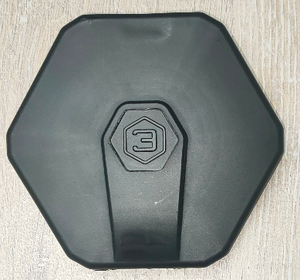
Protective cover TH-BLE
-
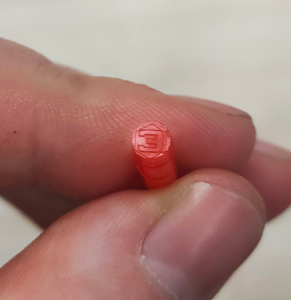
TH-BLE seal


The cover is attached to the sensor head

Then the seal itself is fixed in a special hole (it must be inserted to the end, with the closed end facing outward)
-
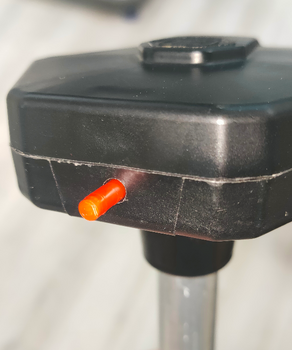
Installing TH-BLE seal
-
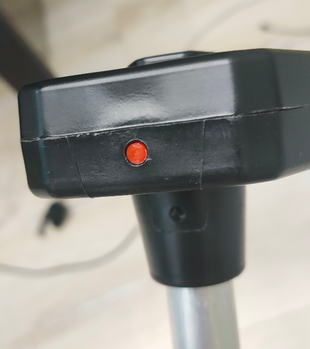
Installed TH-BLE seal


To remove the seal, screw in the special key from the kit (you can also use any self-tapping screw of suitable size) and pull it towards yourself.


This makes it impossible to remove the seal without damaging it. This provides additional protection against unauthorized access.
Alternative sealing for TH-BLE of the current design
Also included with the current TH-BLE is an alternative seal if a numbered seal is required.
- The wire must be threaded through the hole in the sensor cover

- Thread both ends of the cable through the hole in the sensor head

- Pass both ends through the seal, tighten the cable and install the seal by pressing the protruding part of the seal

Mounting and transmitter direction
The most common mounting method is self-tapping screws with a sealing washer. It is also possible to install on threaded crimp nuts, welded bushings and other structural elements. The sensor can be mounted on pre-prepared places using screws and bolts with strength class not less than 4.8. It is necessary to ensure tightness of the connection between the sensor body and the tank. For additional protection it is allowed to use automotive oil and gasoline resistant sealant.
For plastic tanks rivets and bolts can be used.

IMPORTANT! If it is necessary for the magnetic field sensor (or Hall sensor) of the TH-BLE to work properly, the magnet (e.g. from the installation kit) must physically touch the part of the device emphasized in the picture below.

How hard to screw in self-tapping screws

Temperature calculation formula for the TH-BLE if transmitted as level reading. Configuration of a new sensor on the Wialon platform
Formula for recalculating the TH-BLE sensor temperature when transferred to the level field:
Y=a*X+b,
whereY- is the temperature, measured by TH-BLE, X- is the level, transmitted to the “Level” field by LLS, а and b – are chosen by the table 2
| Range of the input parameter (X) | a | b |
|---|---|---|
| 0-32767 | 0,1 | 0 |
| 32768-65535 | 0,1 | -6553,5 |
Example table for connection via BA-BLE

Example table for direct connection

Connection diagram
Wiring diagram for digital inputs

Firmware update (FW)

To update the firmware on the TH-BLE:
- Download the current firmware version as a file to the phone memory.
- Connect to the sensor
- Go to “Settings”
- Go to FW update
- Select the firmware file (1) from the phone memory (The firmware file is the .zip archive itself, no need to unzip it) and start the flashing process (2). These actions should be performed within 30 seconds after entering update mode!
- The flashing process should start. Do not close or minimize the application during the flashing process!
- When the updating is completed, a window will pop up indicating that the update was successful
Up-to-date firmware can be found in the download section.
The firmware file is the .zip archive itself, no need to unzip.